Pay using Shakepay to send USD with interac Transfer

Over 🏆 1 million Canadians already use Shakepay. Install today and get a $20 bonus!

Step-by-Step: How to Send Funds Using My Shakepay

Step1: Install & verify Shakepay

Download Shakepay on your phone and complete account setup. This video below can help 

Step 2: Add funds with interac

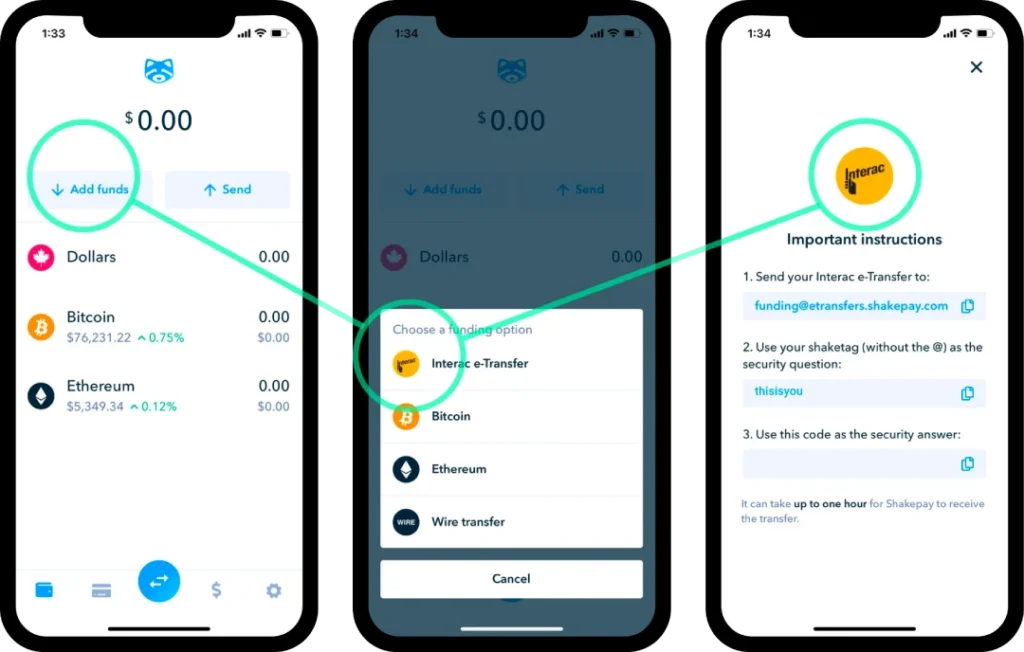
  1. Log into your Shakepay app.
  2. Click on Add from the home screen.
  3. Click on Interac e-Transfer®.
  4. You will find the information required for your e-Transfer:
    • Funding email address, security question, and security answer
    • Please ensure the e-Transfer information is accurate. Typos may cause your transfer to fail.
  5. Log into your mobile or web banking.
  6. Navigate to the “send e-Transfer” section and add your Shakepay account as a contact using the copied information.
  7. Initiate the e-Transfer by selecting your Shakepay contact and entering the amount you want to send.
Notes:
  • Please allow up to 1 hour for e-Transfers to be received.
  • Only send funds from your personal bank account. they do not support e-Transfers from third-party (friends/family) or business accounts.
  • If this is your first time sending an e-Transfer, it may take up to 24 hours to approve your bank account.(Just First time)
  • Shakepay’s funding email address is: funding@etransfers.shakepay.com

Step 3: buy US Dollars on your Shakepay

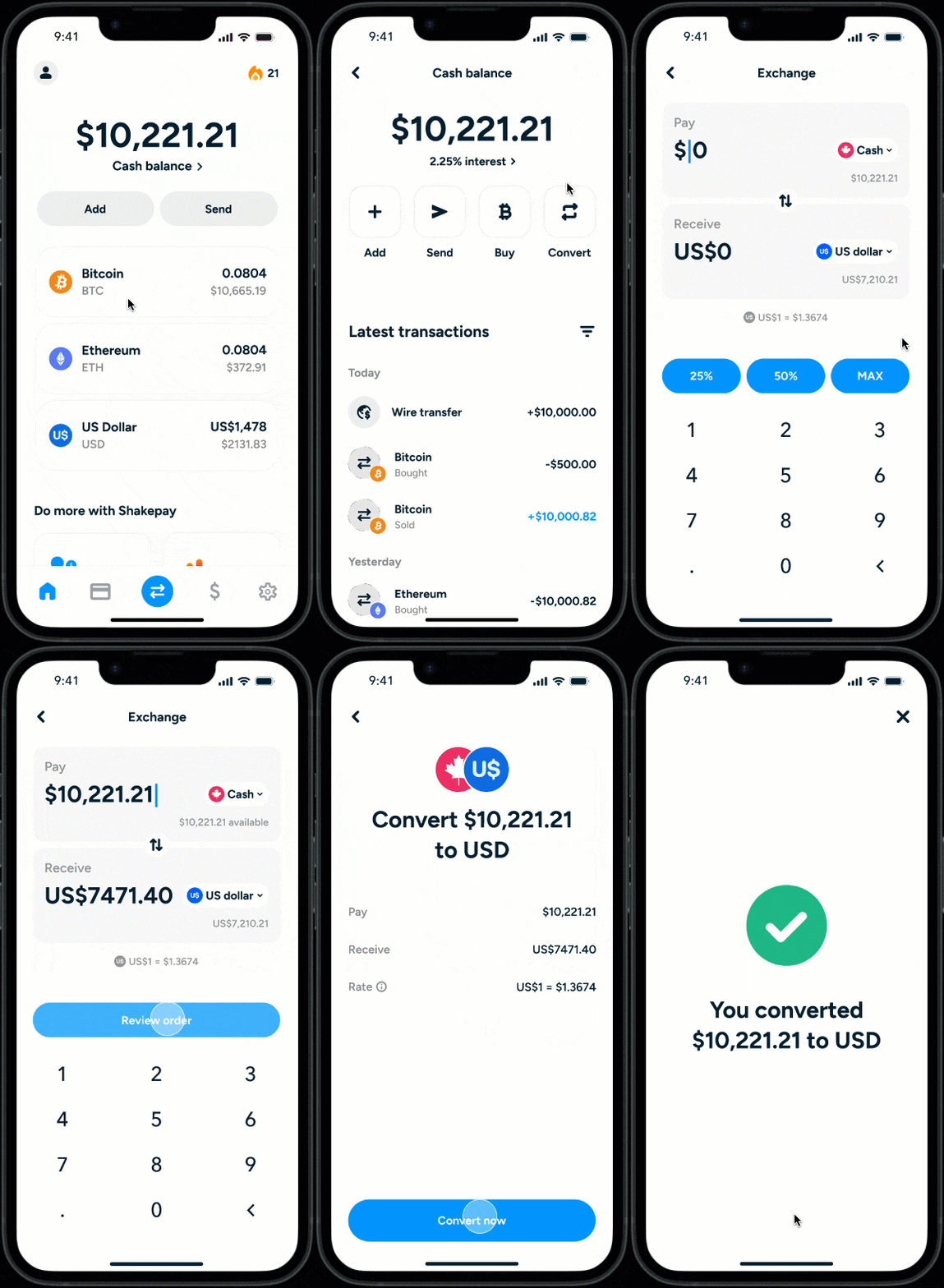
  1. Click the Cash balance button on the home screen.
  2. Click the Convert button.
  3. Input the amount you want to exchange in Canadian Dollars (equal to the price of the plan you chose).
    It will automatically be converted to USD so you can pay us, or you can tap one of the quick action buttons.
  4. Tap Review Order to review the details.
  5. Tap Convert now at the bottom of the screen to finalize your exchange.

Step 4: You have USD now. Choose your plan to pay or renew.

  1. Click on the US dollar funds you already added (exchanged from CAD to USD).
  2. Enter the amount of the plan in US dollars.
  3. Add the wallet address (you will find it after placing your order on the thank you page).
    • If you ordered from a laptop, you can also scan the QR code with the QR icon in the corner for an easier process.
  4. Confirm that the selected coin is USDC.
  5. Add your order number in the note section.
  6. Click Send.
  7. DONE✅🎊

Not Sure What to Do? We’re Here

Can’t find what you are looking for? Ask your questions via live chat or send us a Ticket and get dedicated help.